Five steps, about five minutes. You launch a ready-made AWS practice lab and open Amazon Quick inside it — nothing to install, configure, or pay for. The environment cleans itself up afterwards.
Allow ~5 minutes · do this once, when your facilitator says so
01 · Get ready
Before you start
Launching the lab gives you a private, temporary Amazon Quick workspace. We use the environment only; every exercise and document comes from this workshop.
A laptop and a browser
Chrome, Edge or Firefox, in a normal window (not private/incognito — the sign-in can misbehave there).
The lab URL is right here
Open the classroom lab from the button in Step 1. Follow any sign-in prompt it shows — each session (AM and PM) has its own URL.
About five minutes
Most of that is waiting, not clicking — roughly a minute for the lab to build. That pause is normal.
Treat the lab as public. AWS warns: do not enter any personal, identifying, or confidential information into the lab environment — what you type may be visible to others. That is exactly why this workshop uses only synthetic documents. Never upload real patient or staff data.
Ready? Open the 5 steps tab and work down the list.
02 · Follow along
The 5 steps
Tap a number to tick that step off as you go.
Open the classroom lab
Open the classroom for your session. If prompted, follow the sign-in flow — each session has its own lab URL.
Or copy this URL into your browser:https://us-east-1.student.classrooms.aws.training/class/cVLAUj9xJhnvn9Ne9inQRA
Launch Lab 3
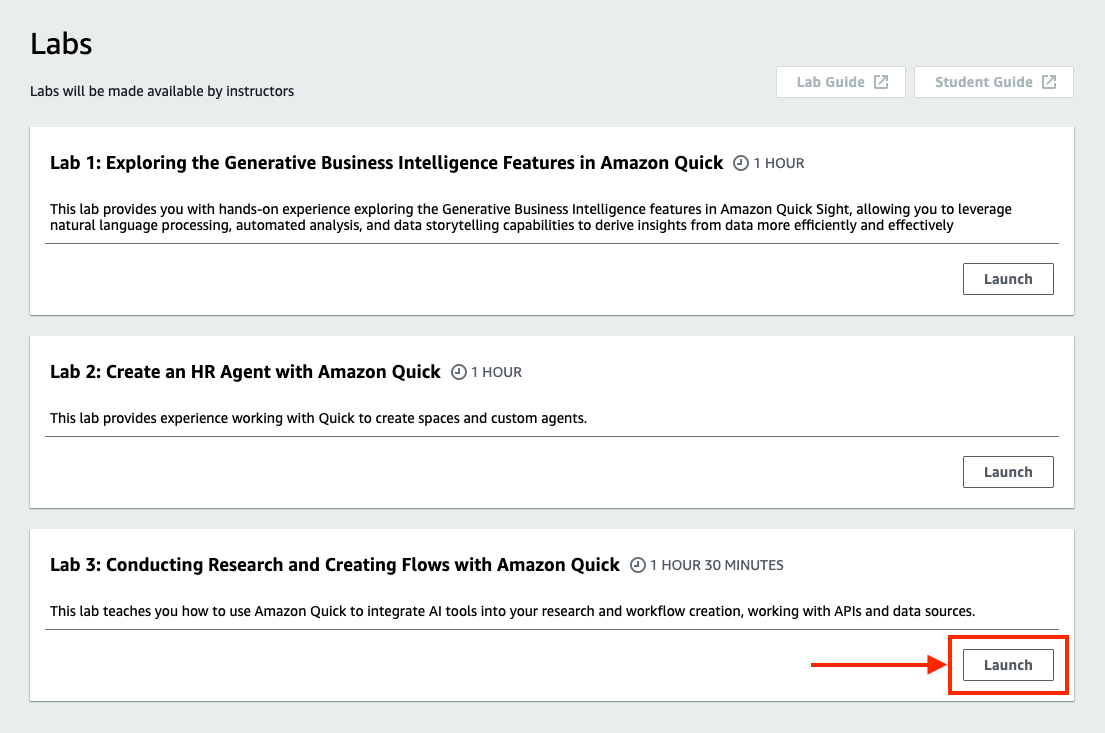
On the class Labs tab you'll see three labs. Find Lab 3: Conducting Research and Creating Flows with Amazon Quick and click its Launch button. It's the lab we use for the whole workshop — the other two aren't needed.
Show screenshotLab 3 — click Launch on the third lab (1 hour 30 minutes).
Start the lab, then open the console
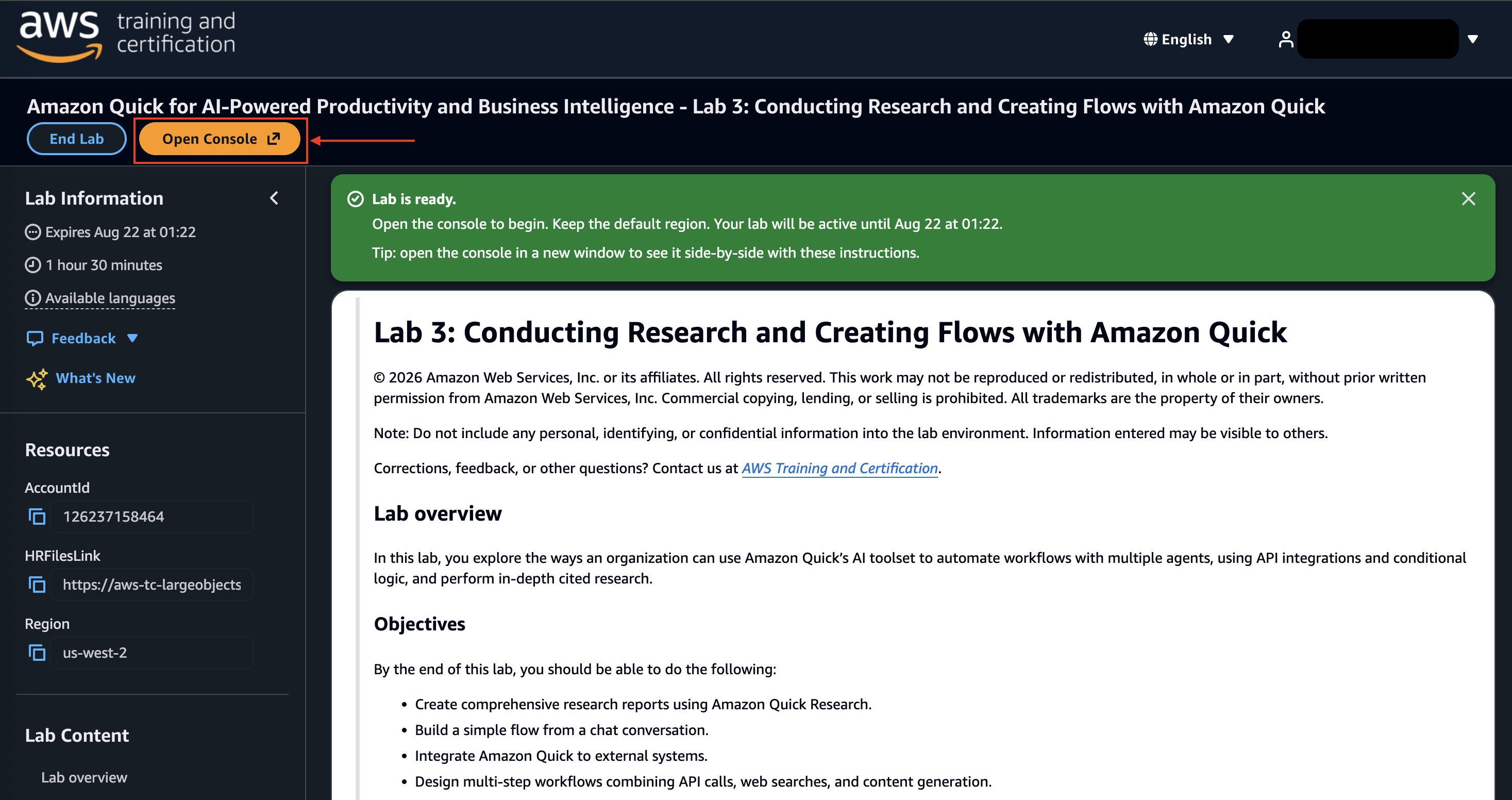
Click Start Lab to build your environment. Give it about a minute — when the green “Lab is ready” banner appears, click Open Console. Keep the default region, and let it open in a new tab so you can keep these instructions beside it.
Show screenshotWait for “Lab is ready,” then click Open Console.
Find Amazon Quick in the console
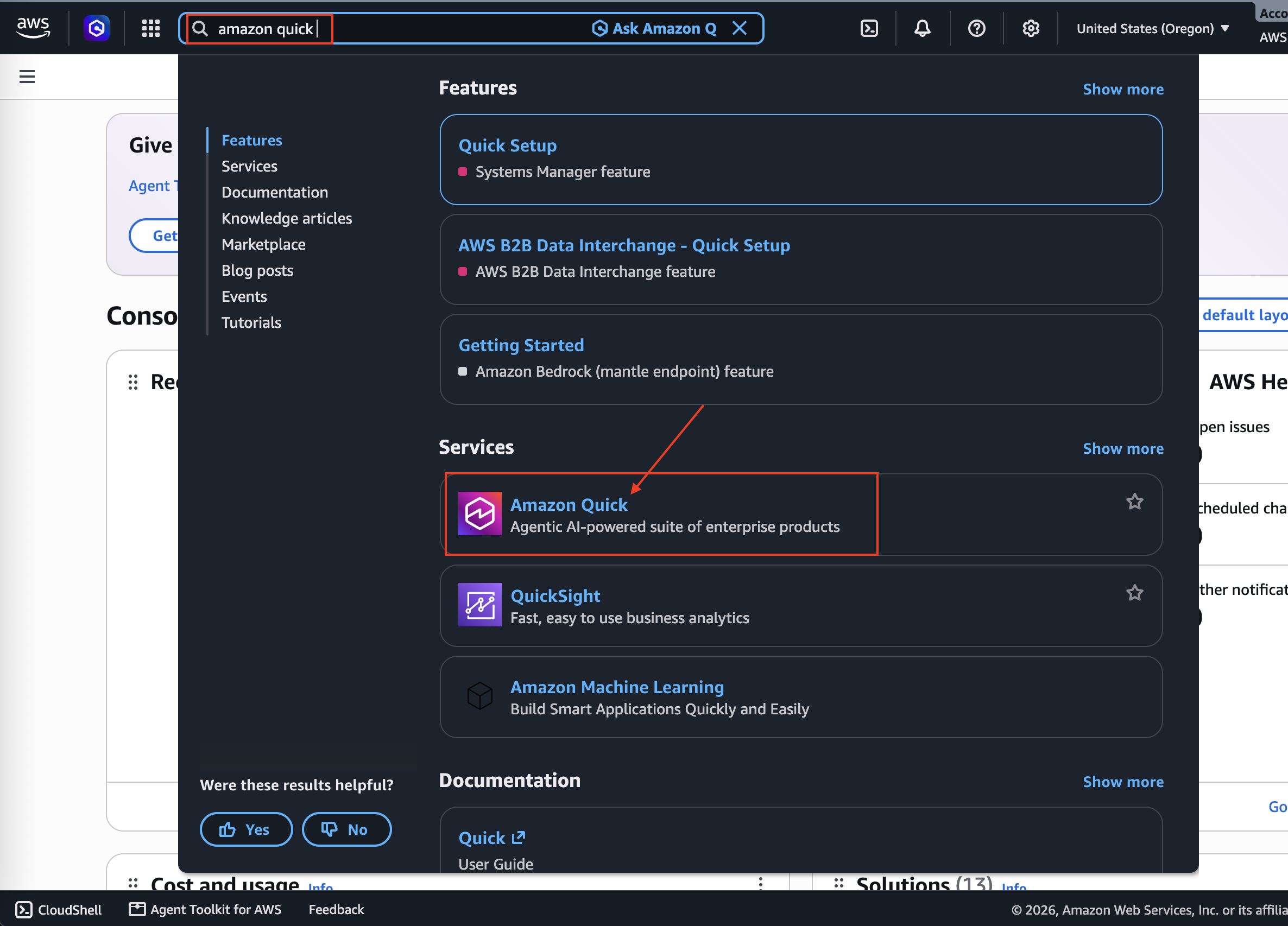
In the AWS console search bar at the top, type amazon quick. In the results under Services, choose Amazon Quick — described as the “Agentic AI-powered suite of enterprise products.”
Pick Amazon Quick, not QuickSight. Both appear in the results and the icons look alike. You want Amazon Quick (the agentic AI suite), not QuickSight (business analytics). Choosing QuickSight is the one common wrong turn here.
Show screenshotSearch amazon quick and select Amazon Quick — the one above QuickSight.
You're in Amazon Quick
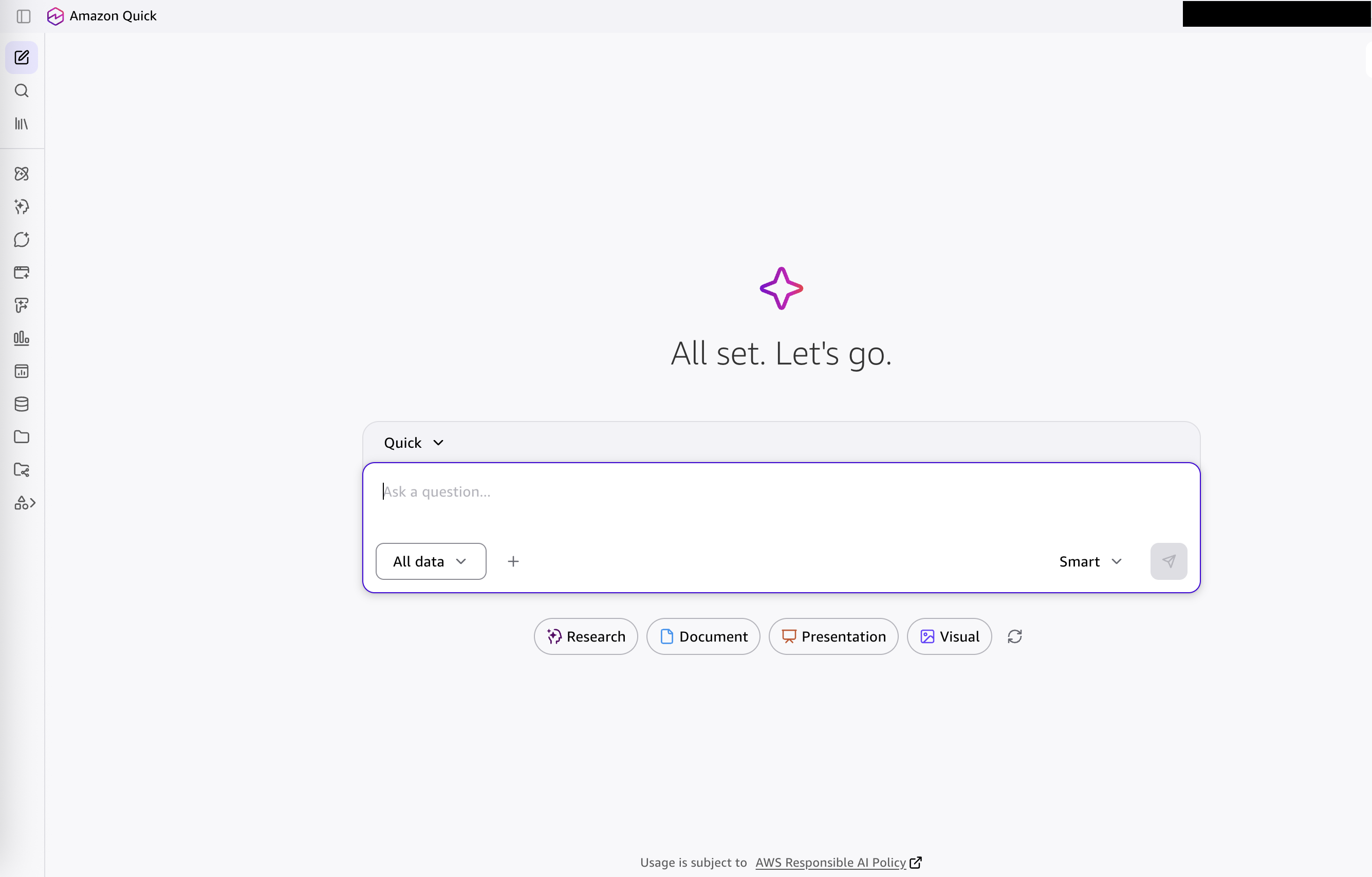
Amazon Quick opens on its home screen — “All set. Let's go.” — with a question box and the Research / Document / Presentation / Visual buttons. That's it: you're ready for the lab.
Show screenshotThe Amazon Quick home screen — you've arrived.
03 · Arrived
You're in
Everything from here happens inside this Amazon Quick workspace. Your facilitator will tell you which lab to start.
Where are Spaces, Chat agents and Flows? The menu down the left starts collapsed to icons only, so it's easy to miss. Hover over it (or click the panel icon at the top-left) to expand it and see the labels. Spaces and Chat agents are the two we use most.
Stop here and wait for the group. Keep this tab open.
04 · Fixes
If it goes wrong
Tap a row to see the fix.
You landed in QuickSight
Go back to the console search, type amazon quick again, and pick Amazon Quick — the agentic AI suite, not QuickSight.
“Start Lab” seems stuck
The environment takes about a minute to build. Wait for the green “Lab is ready” banner — don't click Start Lab twice or refresh.
The lab expired
Launch it again from the class page. A fresh lab is empty — any Space or agent you built earlier won't carry over, which is normal.
The console opened in the same tab
No problem — just work in that tab. You can always return to the lab page from your browser history if you need the resources panel.
Facilitator notes instructor only
Reveal/hide with Shift + N, or add ?notes to the URL.
Why Lab 3. “Conducting Research and Creating Flows with Amazon Quick” (1h30m) is the only one of the three labs that provisions the full Amazon Quick environment. We use the environment only — ignore the lab's own research/flows instructions; every exercise and document comes from this workshop.
Region. The lab opens in us-west-2 (Oregon) by default. Leave it — Amazon Quick and Bedrock are available there. Don't switch region.
One lab per person. Each participant launches their own Lab 3; there's nothing shared. If someone's lab expires mid-session, they relaunch and rebuild — quick, since our data now goes in by prompt (see below).
Restricted laptops. Where a laptop blocks file uploads, use the prompt-then-“Add to space” packs in reference/f4-paste-mode/: one prompt per document creates it inside Quick and adds it to the Space, no upload needed.
PII. The lab is a shared training environment — reinforce that only synthetic documents go in, never real patient or staff data. This dovetails with the workshop's verification theme.